


Android Studio provides keyboard shortcuts for many common operations. Table 1 shows the default keyboard shortcuts by operating system.
Note: In addition to the default key mappings in Table 1 below, you can choose from a variety of preset key mappings or create custom key mappings. For more information on custom keyboard shortcuts, see Configuring Custom Key Mappings below.
Table 1. Default keyboard shortcuts for Windows/Linux and Mac operating systems.
| Description | Windows/Linux | Mac |
|---|---|---|
| conventional | ||
| Save all | Control + S | Command + S |
| Synchronize | Control + Alt + Y | Command + Option + Y |
| Maximize/minimize editor | Control + Shift + F12 | Control + Command + F12 |
| Add to Favorites | Alt + Shift + F | Option + Shift + F |
| Check the current file with the current configuration file | Alt + Shift + I | Option + Shift + I |
| Fast switching mode | Control + ` (backquote) | Control + ` (backquote) |
| Open the settings dialog | Control + Alt + S | Command + , (comma comma) |
| Open project structure dialog | Control + Alt + Shift + S | Command + ; (English semicolon) |
| Switch between tabs and tool windows | Control + Tab | Control + Tab |
| Navigating and searching within Studio | ||
| Search all content (including code and menus) | Press Shift twice | Press Shift twice |
| Find | Control + F | Command + F |
| Find the next one | F3 | Command + G |
| Find the previous one | Shift + F3 | Command + Shift + G |
| replace | Control + R | Command + R |
| Find operation | Control + Shift + A | Command + Shift + A |
| Search by symbol name | Control + Alt + Shift + N | Command + Option + O |
| Lookup class | Control + N | Command + O |
| Find files (not classes) | Control + Shift + N | Command + Shift + O |
| Find in the path | Control + Shift + F | Command + Shift + F |
| Open file structure popup menu | Control + F12 | Command + F12 |
| Navigate before the open editor tab | Alt + right / left arrow | Control + right / left arrow |
| Jump to source code | F4 / Control + Enter | F4 / Command + Down Arrow |
| Open the current editor tab in a new window | Shift + F4 | Shift + F4 |
| Recently opened file popup menu | Control + E | Command + E |
| Recently edited file popup menu | Control + Shift + E | Command + Shift + E |
| Go to the previous edit location | Control + Shift + Backspace | Command + Shift + Backspace |
| Close the event editor tab | Control + F4 | Command + W |
| Return to the editor window from the tool window | Esc | Esc |
| Hide event or previous activity tool window | Shift + Esc | Shift + Esc |
| Go to the line | Control + G | Command + L |
| Open type hierarchy | Control + H | Control + H |
| Open method hierarchy | Control + Shift + H | Command + Shift + H |
| Open the call hierarchy | Control + Alt + H | Control + Option + H |
| Write code | ||
| Generate code (getter, setter, constructor, hashCode/equals, toString, new file, new class) | Alt + Insert | Command + N |
| Replacement method | Control + O | Control + O |
| Implementation | Control + I | Control + I |
| Control statement (if…else / try…catch / etc.) | Control + Alt + T | Command + Option + T |
| Delete the line at the caret | Control + Y | Command + Backspace |
| Collapse/expand the current code block | Control + minus / plus | Command + minus / plus |
| Collapse/expand all code blocks | Control + Shift + minus / plus | Command + Shift + minus / plus |
| Copy current line or select | Control + D | Command + D |
| Basic code is done automatically | Control + space bar | Control + space bar |
| Smart code auto-completion (filtering methods and variable lists by expected type) | Control + Shift + Spacebar | Control + Shift + Spacebar |
| Completion statement | Control + Shift + Enter | Command + Shift + Enter |
| Quick document search | Control + Q | Control + J |
| Display the parameters of the selected method | Control + P | Command + P |
| Go to the statement (direct) | Control + B or Control + click | Command + B or Command + click |
| Go to implementation | Control + Alt + B | Command + Alt + B |
| Go to superclass method / super class | Control + U | Command + U |
| Open quick definition lookup | Control + Shift + I | Command + Y |
| Switch visibility of project tool windows | Alt + 1 | Command + 1 |
| Switch bookmarks | F11 | F3 |
| Switch bookmarks with mnemonics | Control + F11 | Option + F3 |
| Add comments/uncomment by line comment | Control + / | Command + / |
| Add comments/uncomment by block comment | Control + Shift + / | Command + Shift + / |
| Select consecutively increasing code blocks | Control + W | Option + Up |
| Return the current selection to the previous state | Control + Shift + W | Option + Down |
| Move to the beginning of the code block | Control + [ | Option + Command + [ |
| Move to the end of the code block | Control + ] | Option + Command + ] |
| Select from the current position to the start of the code block | Control + Shift + [ | Option + Command + Shift + [ |
| Select from the current position to the end of the code block | Control + Shift + ] | Option + Command + Shift + ] |
| Remove from current position to end of word | Control + Delete | Option + Delete |
| Remove from current location to the beginning of the word | Control + Backspace | Option + backspace key |
| Optimize import | Control + Alt + O | Control + Option + O |
| Quick fix of project (showing intent operation and quick fix) | Alt + Enter | Option + Enter |
| Reformat the code | Control + Alt + L | Command + Option + L |
| Automatic shrinking | Control + Alt + I | Control + Option + I |
| Indent/cancel | Tab/Shift + Tab | Tab/Shift + Tab |
| Smart line merge | Control + Shift + J | Control + Shift + J |
| Smart line split | Control + Enter | Command + Enter |
| Start a new line | Shift + Enter | Shift + Enter |
| Next/previous highlighted error | F2 / Shift + F2 | F2 / Shift + F2 |
| Build and run | ||
| Construct | Control + F9 | Command + F9 |
| Build and run | Shift + F10 | Control + R |
| debugging | ||
| debugging | Shift + F9 | Control + D |
| jump over | F8 | F8 |
| Step by step | F7 | F7 |
| Smart step by step | Shift + F7 | Shift + F7 |
| Jump out | Shift + F8 | Shift + F8 |
| Run to cursor position | Alt + F9 | Option + F9 |
| Evaluation expression | Alt + F8 | Option + F8 |
| Continue to run the program | F9 | Command + Option + R |
| Switch breakpoint | Control + F8 | Command + F8 |
| View breakpoints | Control + Shift + F8 | Command + Shift + F8 |
| Refactoring | ||
| copy | F5 | F5 |
| mobile | F6 | F6 |
| Safe delete | Alt + Delete | Command + Delete |
| Rename | Shift + F6 | Shift + F6 |
| Change signature | Control + F6 | Command + F6 |
| Inline | Control + Alt + N | Command + Option + N |
| method of extraction | Control + Alt + M | Command + Option + M |
| Extract variable | Control + Alt + V | Command + Option + V |
| Extract field | Control + Alt + F | Command + Option + F |
| Extract constant | Control + Alt + C | Command + Option + C |
| Extraction parameter | Control + Alt + P | Command + Option + P |
| Version control / local history | ||
| Submit project to VCS | Control + K | Command + K |
| Update project from VCS | Control + T | Command + T |
| View recent changes | Alt + Shift + C | Option + Shift + C |
| Open the VCS pop-up menu | Alt + ` (backquote) | Control + V |
Table of Contents
Configuring custom key mappings
You can choose from a variety of preset keymaps, or you can modify a preset keymap in Android Studio’s keymap settings to create a new custom keymap.
To open the key mapping settings, click File > Settings > Keymap (on a Mac, click File > Properties > Keymap ).
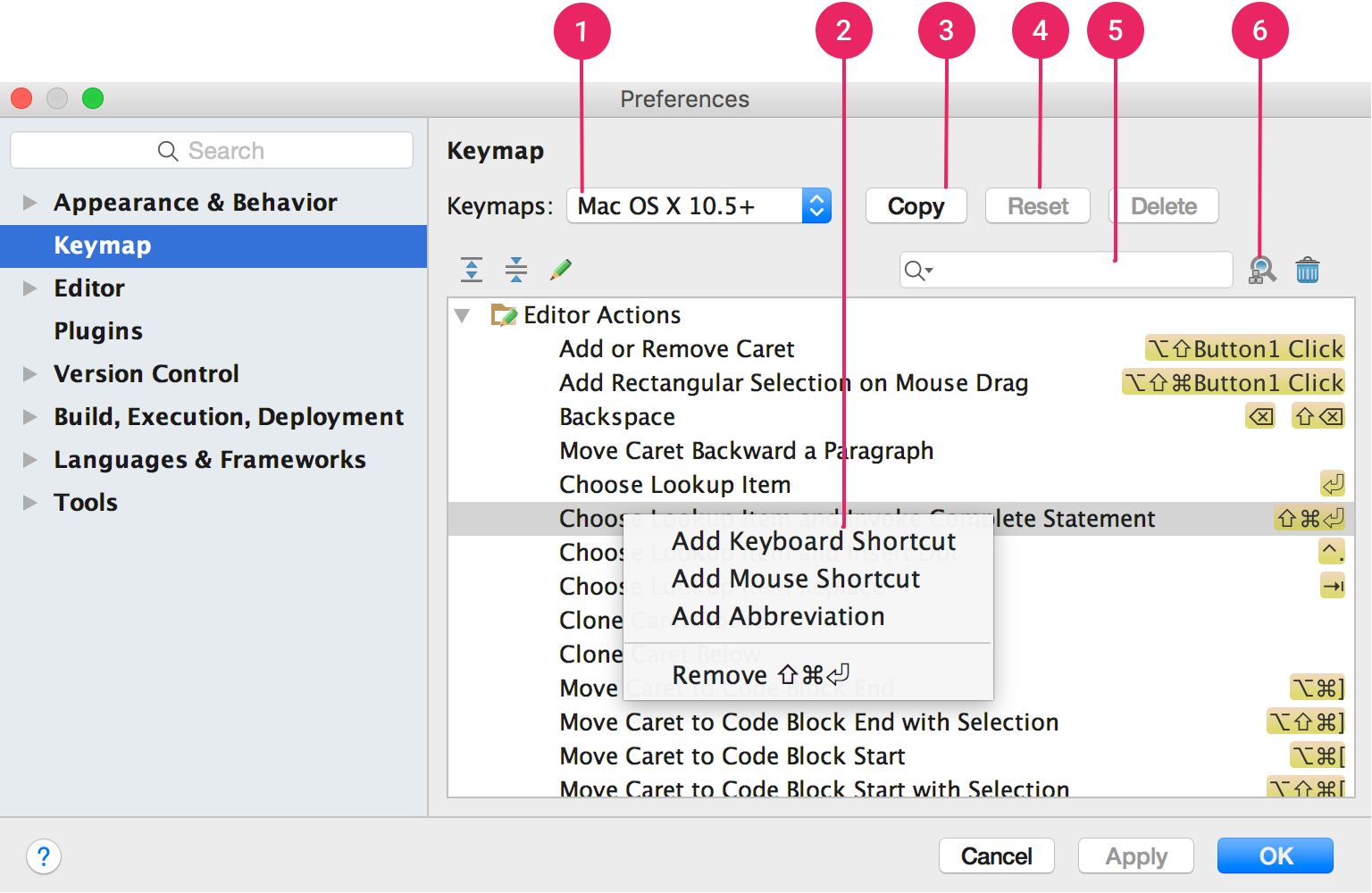
Figure 1. Android Studio key mapping settings window.
- Keymap drop-down menu: Select the desired keymap from this menu to toggle between preset keymaps.
- Action list: Right click to modify it. You can add more keyboard shortcuts to your actions, add mouse shortcuts to associate an action with a mouse click, or remove the current shortcut. If you’re using a preset keymap, the shortcut to the edit action will automatically create a copy of the keymap and add your changes to the copy.
- Copy button: Select a key map to use as a starting point from the drop-down menu and click Copy to create a new custom key map. You can modify the keymap name and shortcuts.
- Reset button: Select a key map from the drop-down menu and click Reset to return it to its original configuration.
- Search box: Type text here to search for keyboard shortcuts by action name.
- Search by shortcut : Click Find Actions by Shortcut and type a shortcut to press the shortcut to search for the action.